Tutorial
This walkthrough goes from a fresh install to a change on a parent product appearing on its children. It takes about ten minutes. You need two or more products that should carry the same details, and a staff account that can install apps.
1. Install the app
Open the App Store listing and install it on your store. Shopify asks you to approve access to your products, then opens the app inside your admin.
The first screen is the dashboard, titled Product Mirror. A Get started card lists the four things to do, and ticks them off as you go. You can dismiss it at any time.
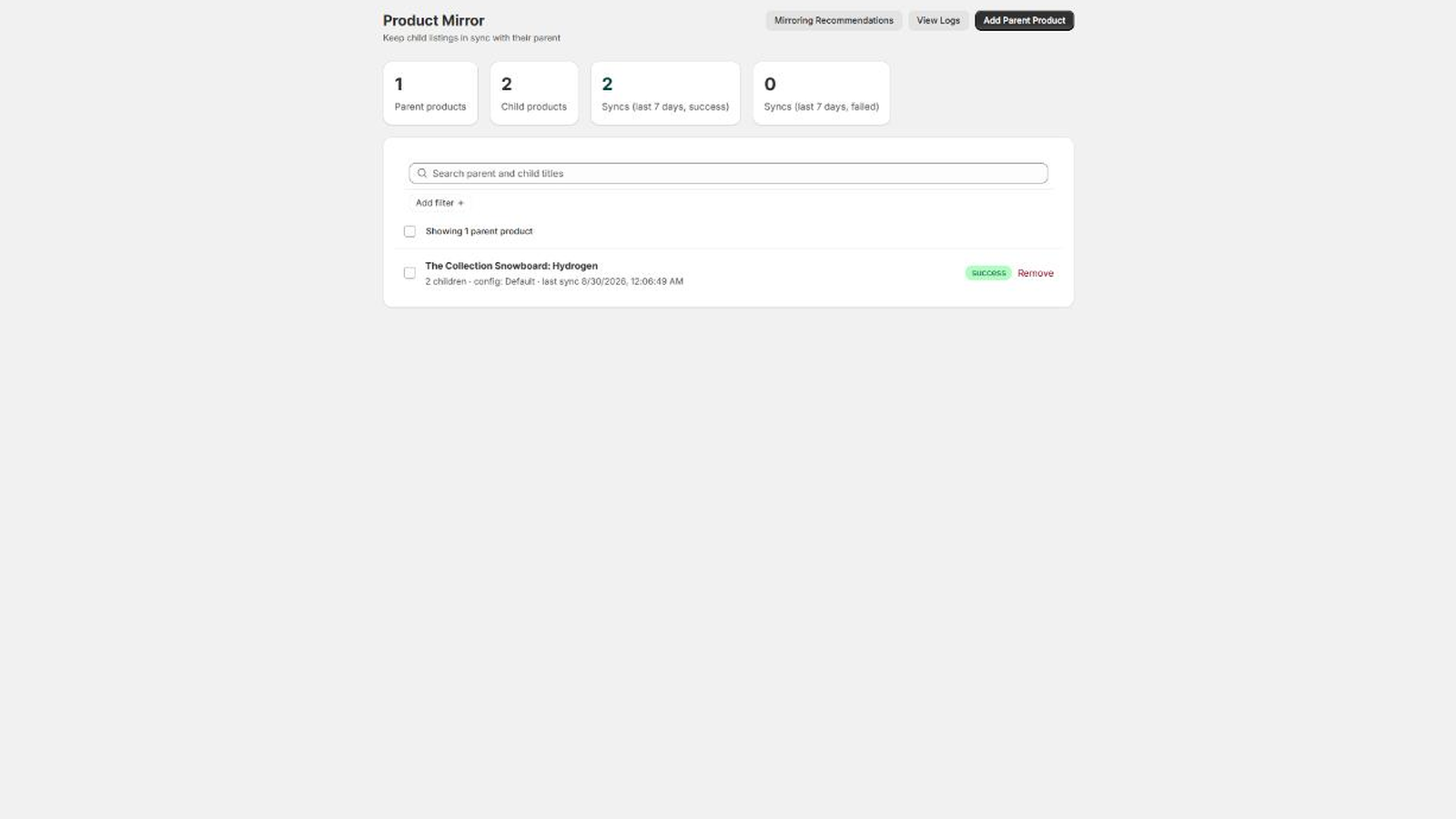
2. Choose the parent product
Click Add Parent Product at the top right. In the dialog, click Search products… to open Shopify’s product picker, find the listing whose details the others should copy, and select it.
The dialog now shows the product you picked, with a Change product link if you chose the wrong one. Click Add Parent.
The app takes you straight to that product’s rule page, which is titled with the product’s name.
If the app tells you the product is already a child of another rule, open that rule instead: a product can belong to only one rule, and cannot be both a parent and a child.
3. Attach the child products
On the rule page, find the Child Products card and click Add Child Products.
Click Search products…, then tick every product that should mirror this parent. The picker is multi select, so you can add them all at once. Click Select in the picker to come back.
Each picked product is listed with its image. Use Edit selection to change the set, or Remove next to one product to drop it. When the list is right, click Add Child (or Add 2 Children, Add 3 Children, and so on).
The children appear in the Child Products card, under the line “These products will receive updates when the parent is synced.”
4. Decide which fields mirror
Scroll to the Sync Config card. A new store has one config, shown in the dropdown as Default (default), and every parent uses it until you say otherwise.
Click Edit this config’s fields to see what it copies. Fields are grouped as Content, SEO, Media, Metafields and Pricing & Inventory. Hover a checkbox for a one line description of the field.
Out of the box, description, vendor, product type, tags, SEO title and description, images and metafields are on. Title and status are off, and the whole Pricing & Inventory group is off. Tick and untick until the list matches what these products should share, then click Save Config.
Changing a config changes it for every parent using it. If only this family needs different rules, go to Sync Configs, click New Config, name it, set its fields, and then pick it in the Assigned config dropdown on the rule page.
5. Run the first sync by hand
Go back to the rule page and click Sync Now at the top right.
The app reads the parent, writes the enabled fields to every child, and reports how many child syncs succeeded and how many failed in a banner at the top of the page.
Open one of the children in your admin (clicking its row on the rule page opens it) and confirm the mirrored fields now match the parent.
6. Confirm it happens on its own
The manual button is a convenience. The everyday path is simply saving the parent.
- Click Edit Parent at the top of the rule page to open the parent in your admin.
- Change something that is mirrored, for example a line in the description, and save.
- Wait a few seconds, then reload the rule page in the app.
The Sync History (last 30) table at the bottom of the rule page now has a new row per child,
with Triggered by reading webhook rather than manual. The Status column shows whether
each child was written successfully, and Error carries the message if one was not.
7. Where to go next
- Product Sync Rule. On any product page in your admin, the More actions menu now has a Product Sync Rule item. It opens that product’s rule, or the rule that owns it, or offers Make Parent Sync if the product is not mirrored yet.
- Mirroring Recommendations. From the dashboard, this scans your catalogue for groups of products whose titles differ only by a suffix, and offers each group as a ready made family.
- Logs. View Logs on the dashboard shows recent sync results across every rule in the store.
If you run out of sync rules on the Free plan, the app says so and links to its Plan page, where Change plan opens Shopify’s own plan page for the app.
Anything unclear, or a sync doing something you did not expect: write to hello@ioun.dev. The FAQ and the documentation cover the details this walkthrough skipped.